
Export a book as PDF
Make a print-ready PDF of the open book, laid out with your page setup.
The file name carries the book code and today's date.
Steps
- Open the book and click Check. If a checking tool opens instead of the list, click ← All checking tools.
- On the Community Checking card, click Open →.
- Optional: set the page setup (paper size, columns, spacing). See Community Checking preview and page setup.
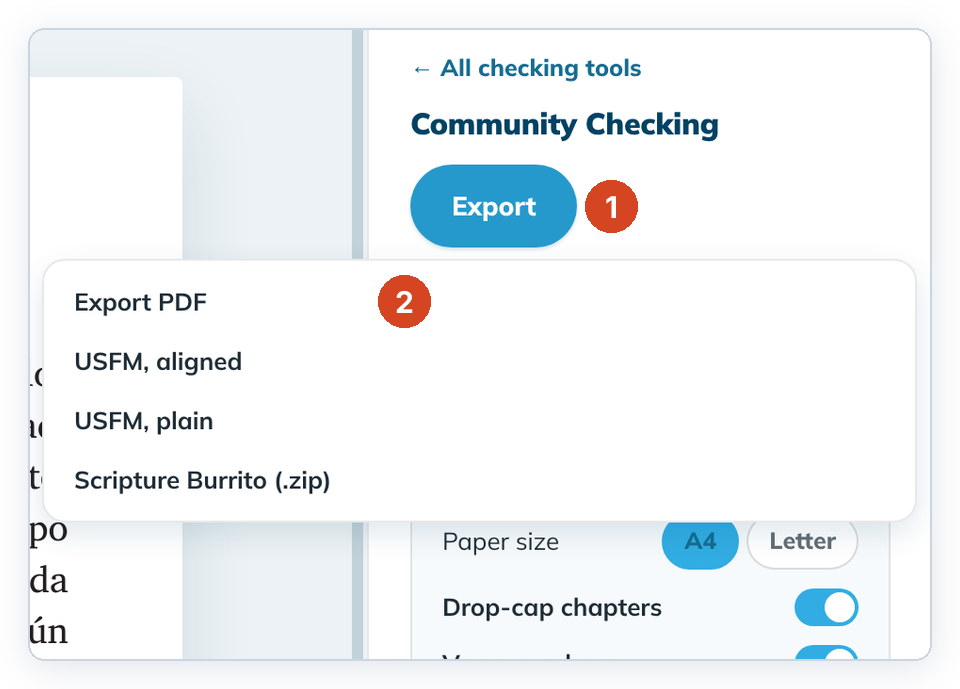
- Click Export (1), then Export PDF (2).
- Keep the suggested file name or type another, then save. The panel shows "Saved <file name>".
To cancel, close the save window. No file is made.
Good to know
- Undrafted verses print as "[ verse not yet drafted ]". Undrafted chapters at the start or end are left out.
- If nothing in the book is drafted, tC4 says so and makes no file.
- The paper size and spacing aren't remembered. Set them each time.
- Footnotes aren't printed yet.
- On Linux the save window is the system file window and opens in your Downloads folder. If you can't see its Save and Cancel buttons, press Enter to save or Esc to cancel.