
The Home screen
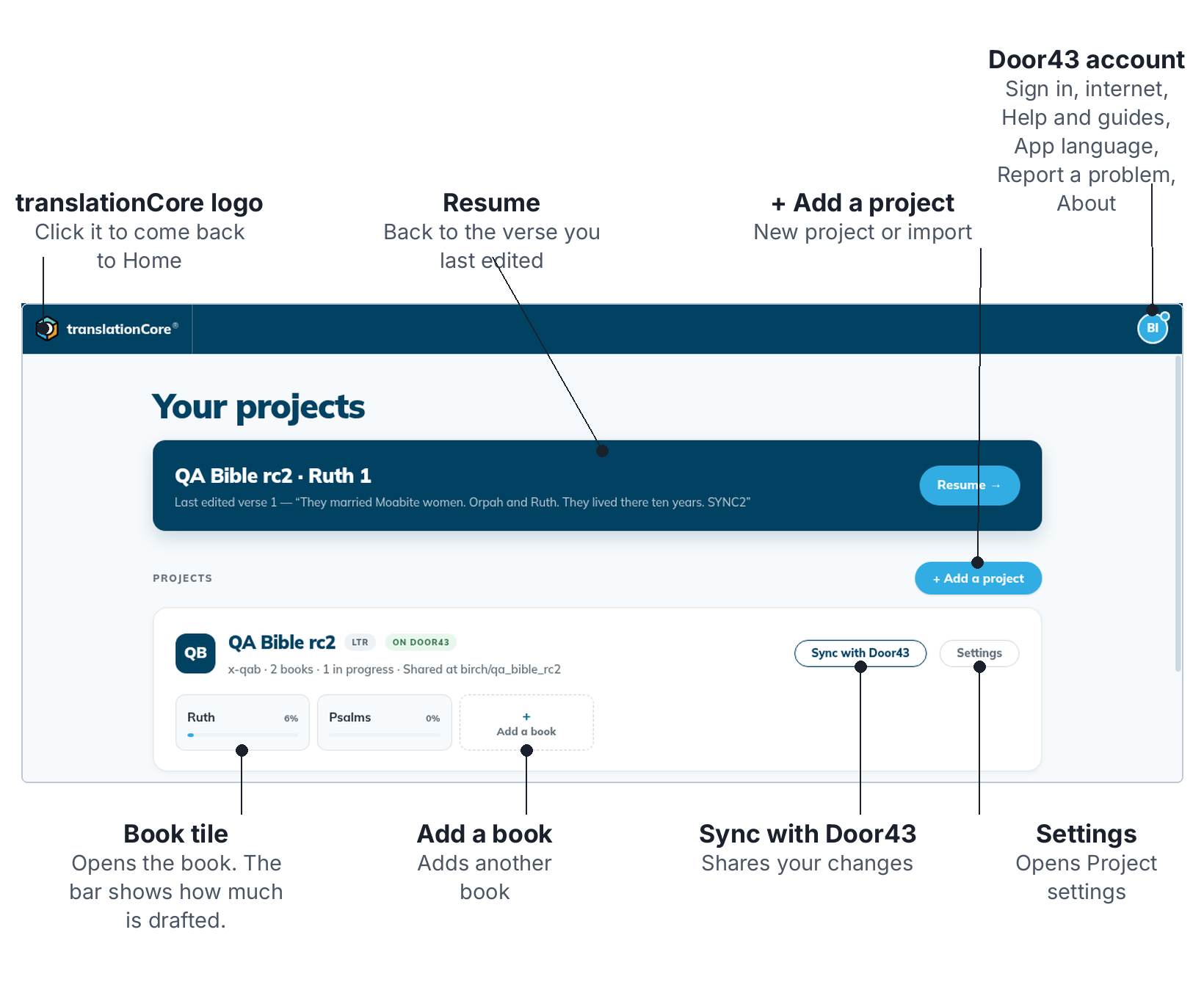
Home lists your projects. From here you open a book, go back to where you stopped, or add a project.
Open a book
- Click a book tile on a project card. A book you have not opened before starts in Understand. A book you have worked in opens where you left it.
- To come back to Home, click the translationCore logo at the top left.
To go straight back to the verse you last edited, click the blue banner or Resume →. See Resume where you left off.
The project you used last is always at the top of the list. The line under a project's name shows its language code, how many books it has, and whether it is only on this computer or shared on Door43.
Add a project
Click + Add a project, then choose one of the three cards.
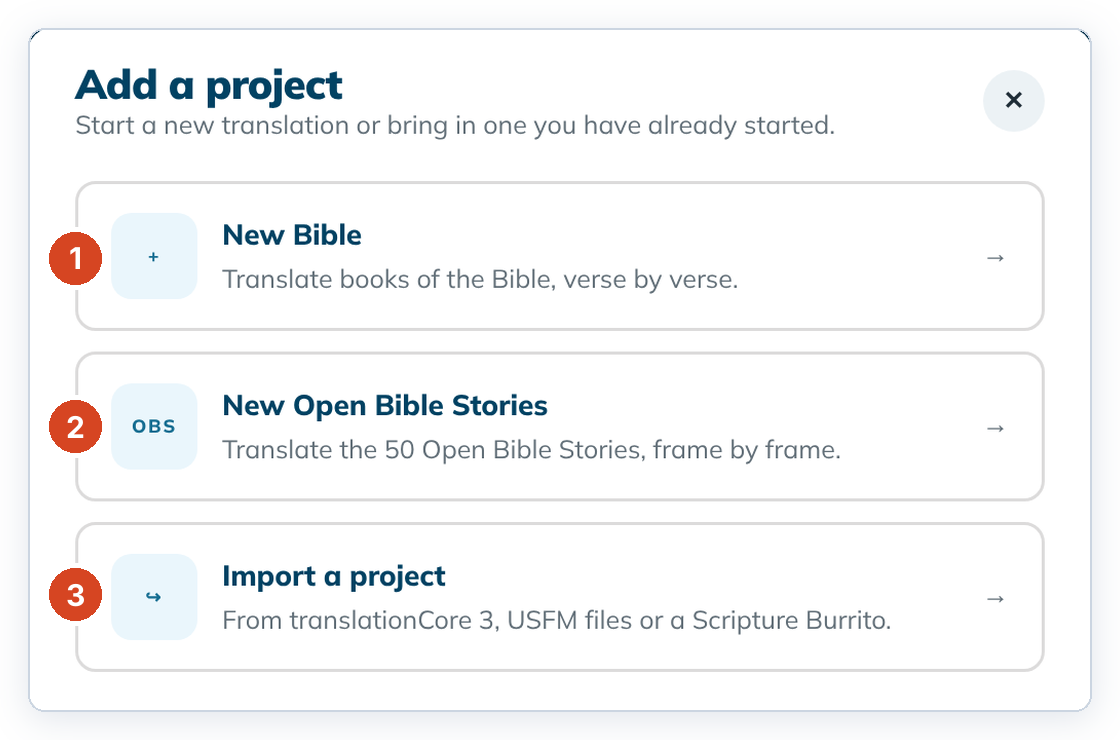
- New Bible starts a new Bible translation. See Create a Bible project.
- New Open Bible Stories starts the 50 stories. See Start an Open Bible Stories project.
- Import a project brings in work from translationCore 3, USFM files or a Scripture Burrito. See Import a project.
To close the dialog without choosing, press Esc or click ✕.
Change a project
- Settings on the card opens Project settings: the checking language, text direction and script font. See Project settings.
- Add a book adds another book to the project.
- Share on Door43 uploads a copy of the project to Door43. See Share to Door43.
The account menu
Click the round person icon at the top right. The menu is the same on Home and inside a project.
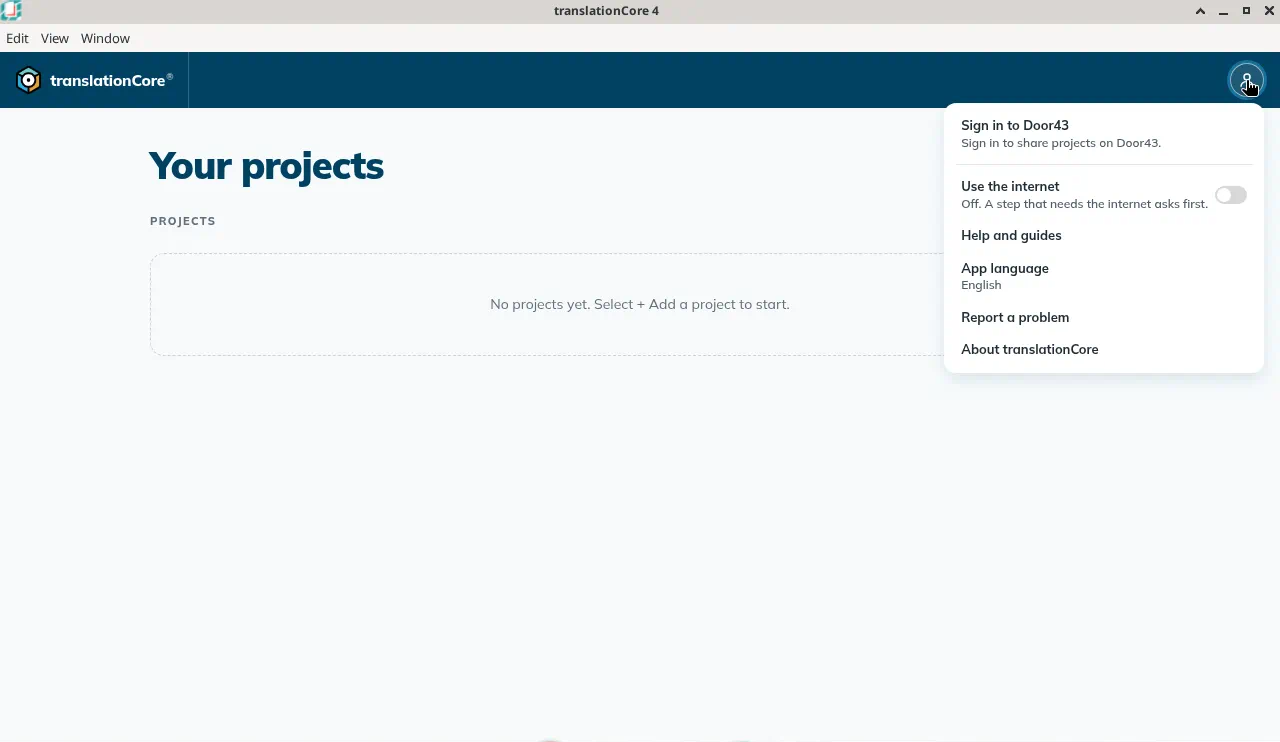
- Sign in to Door43 so you can share projects.
- Use the internet turns the internet on or off for translationCore. While it is off, a step that needs the internet asks first.
- Help and guides opens the offline help that ships with the app. You can browse and search with no internet.
- App language changes the language of the menus and buttons. See Change the app language.
- Report a problem opens a form that sends a message to the unfoldingWord help desk.
- About translationCore shows the version and the license.