
The Translate screen
Translate is where you draft. The source text is on the left, your translation is beside it, and the helps are on the right.
Each row puts a section of the source text next to your translation of it.
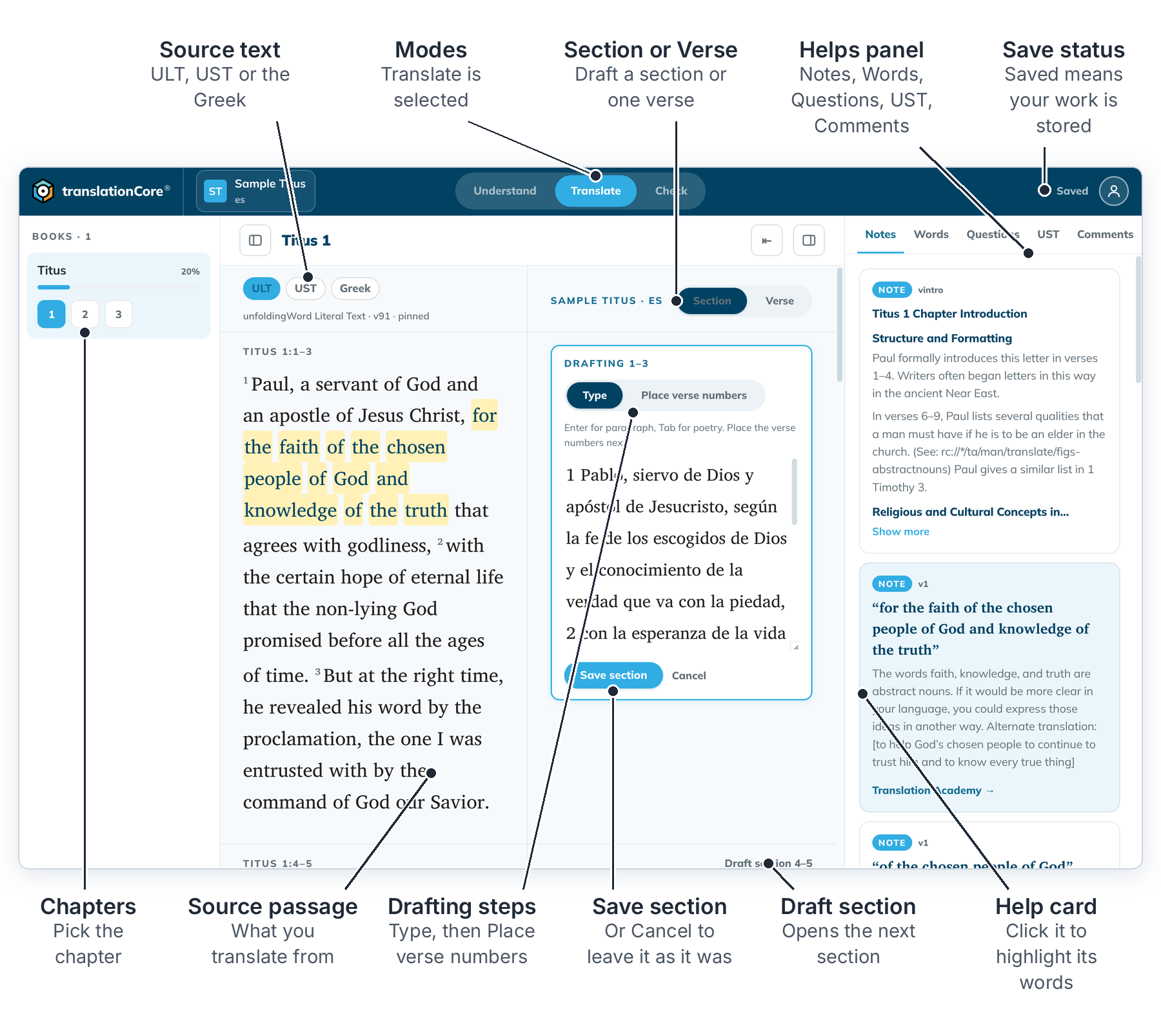
Draft a section
- Open a book, then click Translate at the top.
- Pick a chapter in the book list on the left.
- Choose the source text with the tabs above it: ULT (literal), UST (simplified) or the original language (Greek or Hebrew). The line under the tabs names the text and its version.
- Choose Section to draft a whole section at once, or Verse to draft one verse at a time.
- Click Draft section beside the section you want. Type the text, then use Place verse numbers. See Draft a section.
- Click Save section. To leave the section as it was, click Cancel.
Make room
- The button at the top left of the page shows or hides the book list.
- At the top right of the page, Toggle helps panel shows or hides the helps. Drag the vertical divider to change the panel width.
The helps panel
The panel shows help for the section you are working on: Notes, Words, Questions, the simplified text (UST) and Comments from Understand. Click a help card and the words it is about are highlighted in the source text. See The helps panel in Translate.
Translate remembers your choice of Section or Verse for each project.