
Export stories as PDF or Markdown
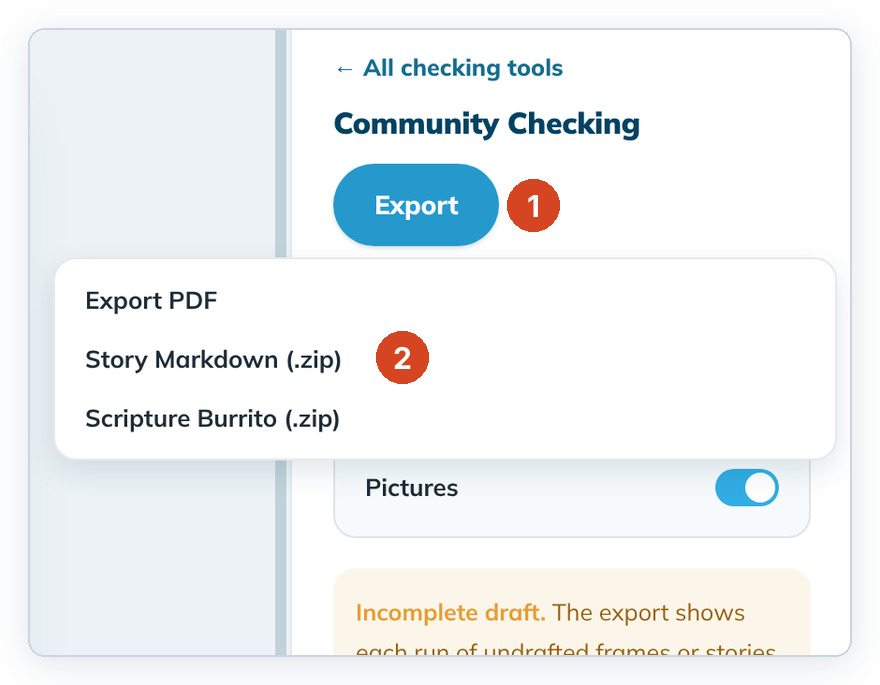
Save a printable PDF of your stories, a Story Markdown zip, or a Scripture Burrito.
- Export PDF: a reading copy for reviewers, with or without pictures.
- Story Markdown (.zip): the story files for other Open Bible Stories tools.
- Scripture Burrito (.zip): the whole project. See Export a project as a Scripture Burrito.
Steps
- Open a story and click Check, then Open → on Community Checking.
- Optional: choose the layout and pictures. See Story preview and export.
- Click Export (1), then pick a format (2).
- Keep the suggested file name or type another, then save. The panel shows "Saved <file name>".
To cancel, close the save window. No file is made.
Good to know
- Draft at least the title or one frame before you export a PDF.
- To save a second PDF with another layout, change the layout, export again and give it a new name.
- If you see "The app could not print the PDF with its pictures…", turn Pictures off and export again.
- On Linux the save window opens in your Downloads folder. If you can't see its buttons, press Enter to save or Esc to cancel.