
Update pinned helps
See whether newer notes, words and questions are out, and move your project to them when you are ready.
A project keeps the exact versions it started with, so checks stay stable. Updating is always your choice.
Steps
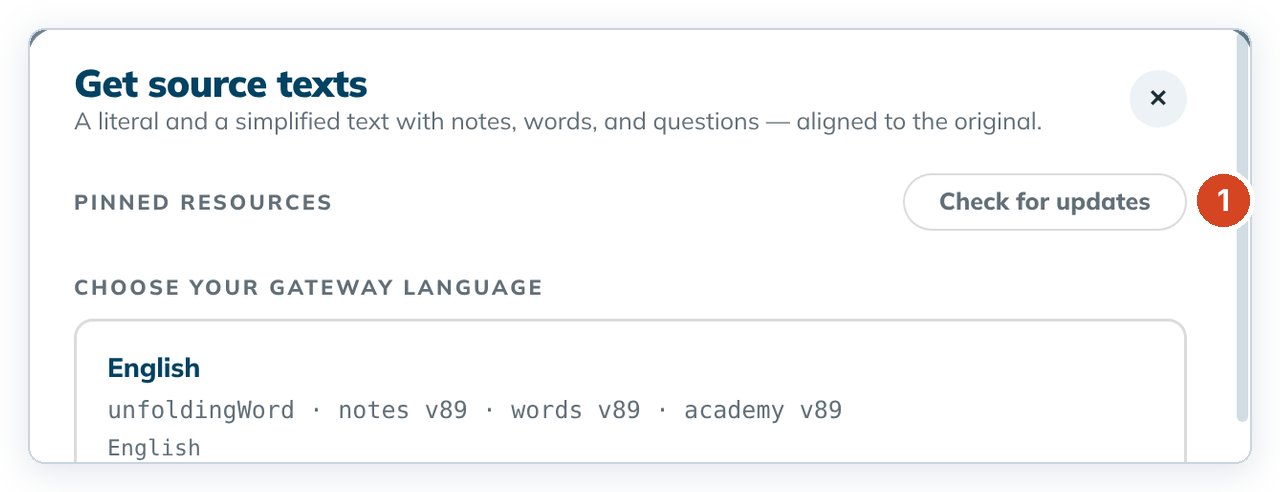
- On Home, click Settings on the project card, then Manage source texts →. The project opens with Get source texts on top.
- Click Check for updates (1). If "Turn on the internet?" appears, click Turn on internet. See Working offline.
- Each set shows ✓ Up to date or "Upgrade N resource(s)" with each change, for example
en_tn v86 → v91.
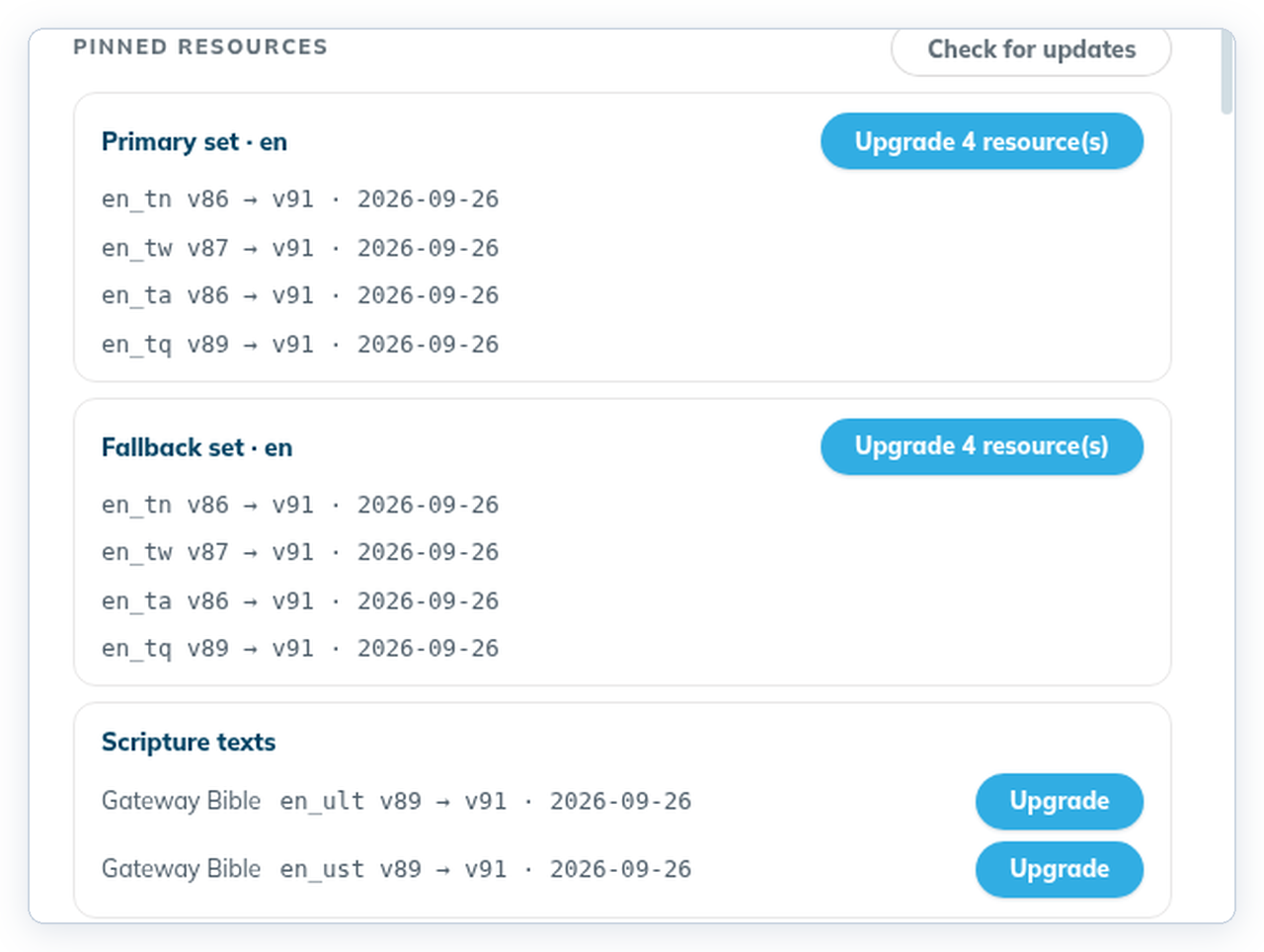
- Click "Upgrade N resource(s)", read the confirmation, and click Upgrade.
To cancel, click Keep the current release.
Good to know
- Decisions that match a check in the new release carry over. The rest come back as work. Nothing is deleted.
- A new project already uses the helps that come with the app, so it says ✓ Up to date.
- A project that checks in another language lists that language as the primary set and English as the fallback.
- tC4 doesn't check for updates by itself.