
Open the Align tool
Align links each word of your translation to the original-language word it translates. Open it from Check.
The checking tools use these links to highlight your words, and an aligned USFM export carries them.
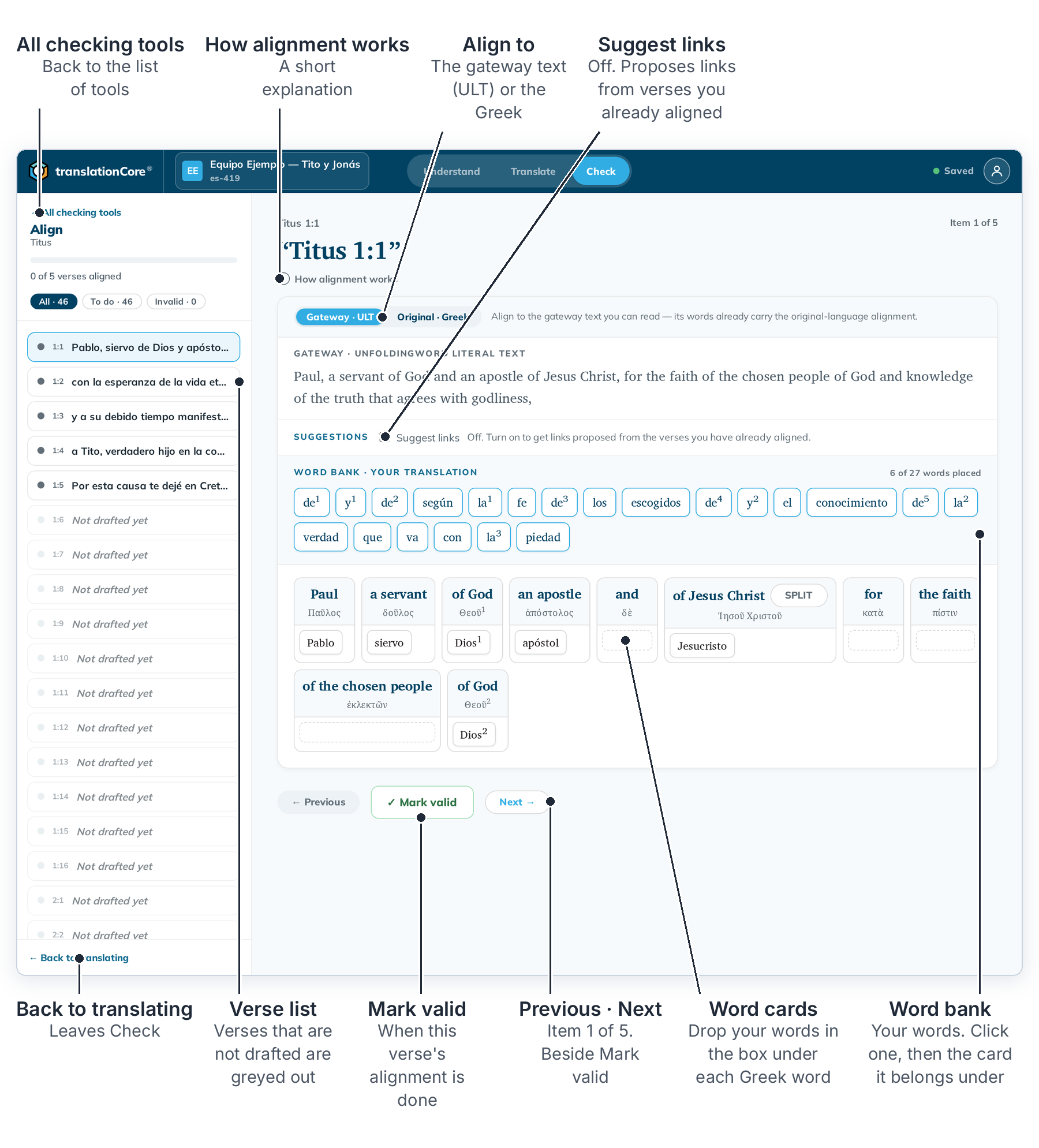
Open Align
- Click Check, then Start checking → on the Align card.
- Pick a verse in the verse list on the left. Verses that are not drafted yet are greyed out.
- Link your words to the word cards. See Link your words to the source.
- When the verse is done, click ✓ Mark valid. See Mark an alignment done.
To leave, click ← All checking tools at the top left, or ← Back to translating at the bottom left.
On this screen
- Gateway · ULT aligns to the gateway text you can read. Its words already carry the link to the original language. Original · Greek aligns straight to the Greek words. See Align to the gateway text or the original language.
- Suggest links is off at first. Turn it on to get links proposed from the verses you have already aligned. See Alignment suggestions.
- Above the word bank, a count shows how many of the verse's words are placed.
- How alignment works opens a short explanation.
Note: Align is for Bible books. Story projects have no Align card.
Verses you imported with alignments
If a book came from a USFM file that already had alignments, its aligned verses open in Align with the notice This verse already holds an alignment. You can't change those verses in Align yet. tC4 keeps their alignment as it was imported and writes it unchanged into the aligned USFM export.

Good to know
- The source cards always follow the original-language text your project uses. If a stored link points to a word that text doesn't have, the link is removed, its words go back to the word bank, and the verse is flagged for review.