
Place verse numbers
After typing a section, pick up each verse number and click the word where that verse begins.
Each verse number is a small orange marker, and numbers you haven't placed yet wait in the To place box.
Steps
- In the section editor, click Place verse numbers.
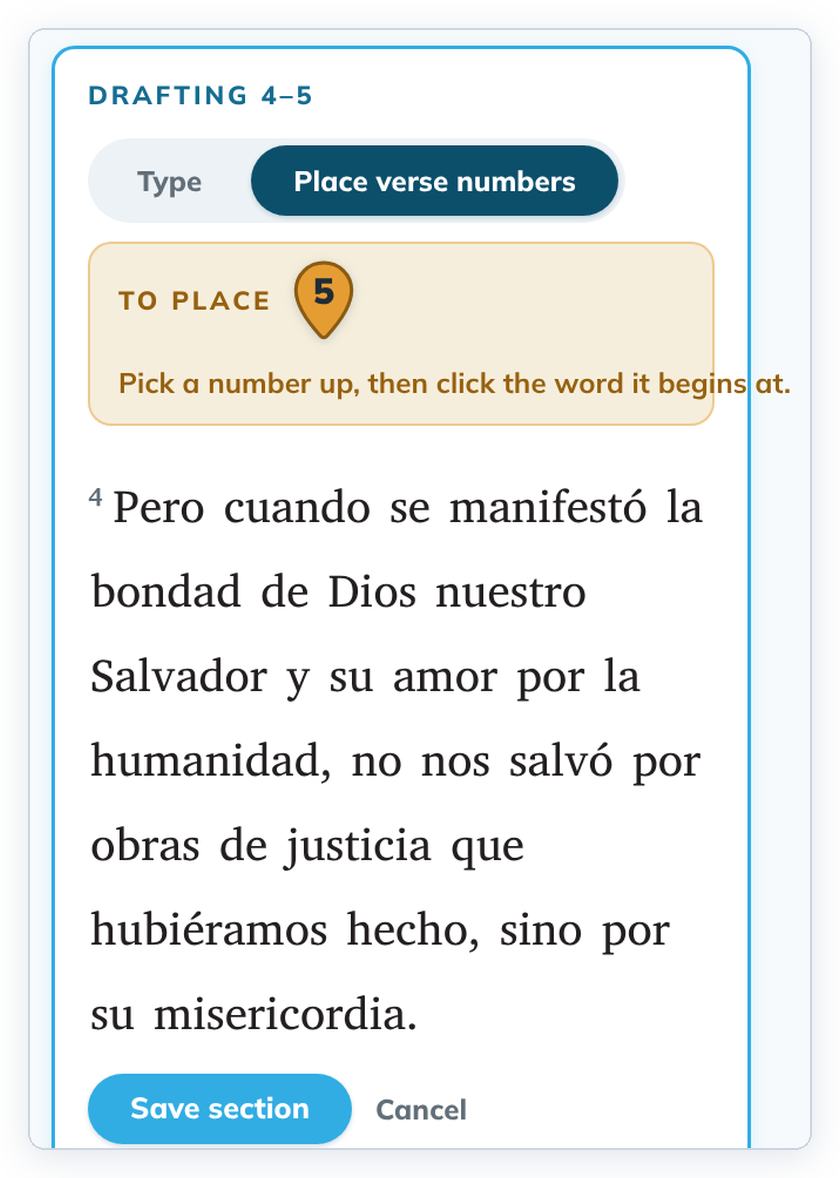
- Click a number in the To place box to pick it up.
- The words where that verse can begin are highlighted. Click the word where the verse begins.
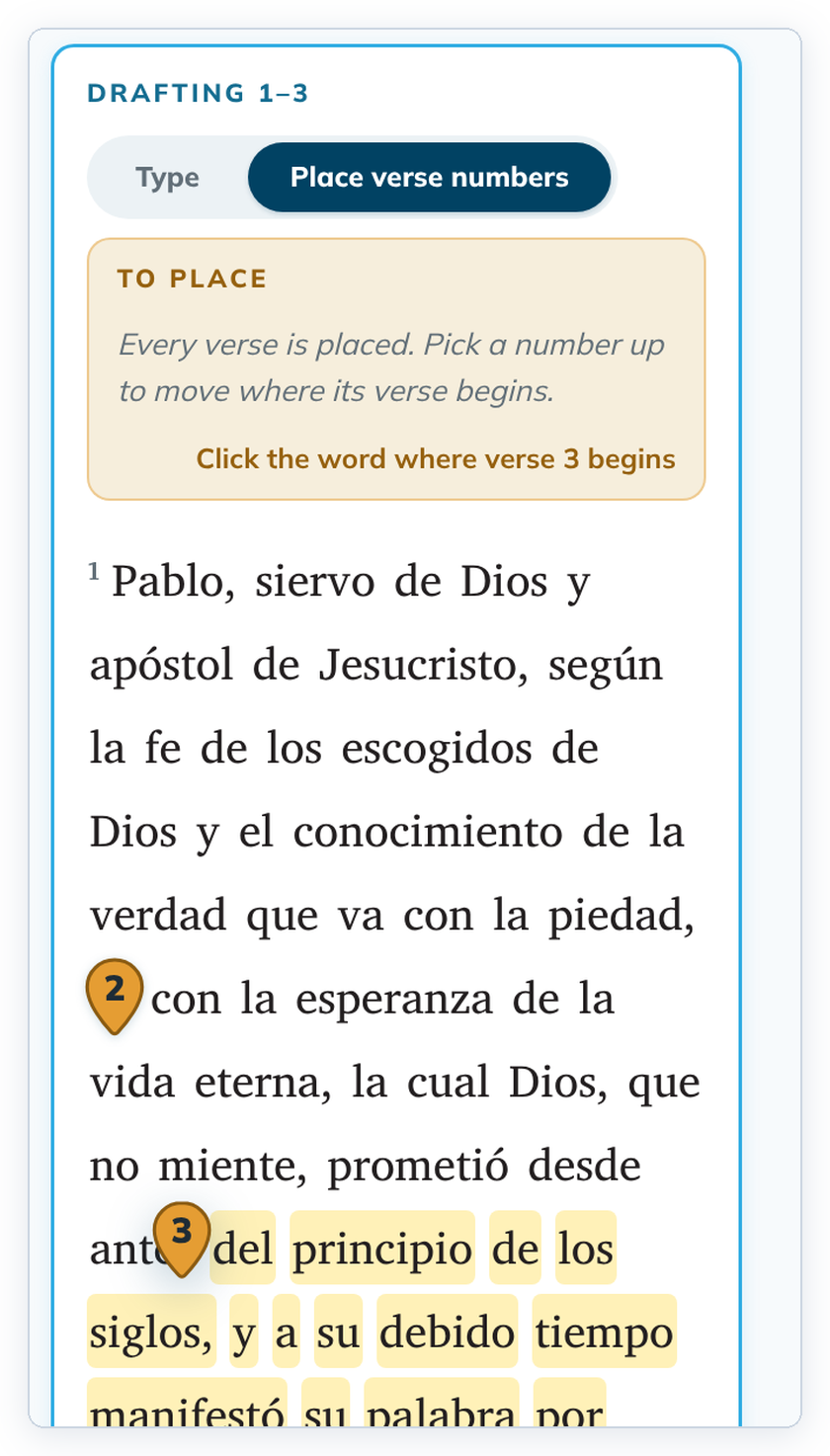
- Repeat for every number, then click Save section.
To go back to typing, click Type. The numbers you placed are kept. Cancel closes the editor without saving.
Good to know
- To move a number that is already placed, pick it up from the text and click another word.
- If a number lands on a nearby word as soon as you pick it up, pick it up again and click the right word.
- When you pick up a placed number, the box still says "Every verse is placed". Follow the line under it: "Click the word where verse 3 begins".
- A number can't pass another number, and the first number of the section can't move.
- Putting a number on the word where another verse begins joins them into a span. See Make or break a verse span.