Change the app language
Show translationCore's menus, buttons and dialogs in English, Spanish (Latin America), French, Hindi, and five more languages shipped after #522.
Your translation and your projects do not change.
Steps
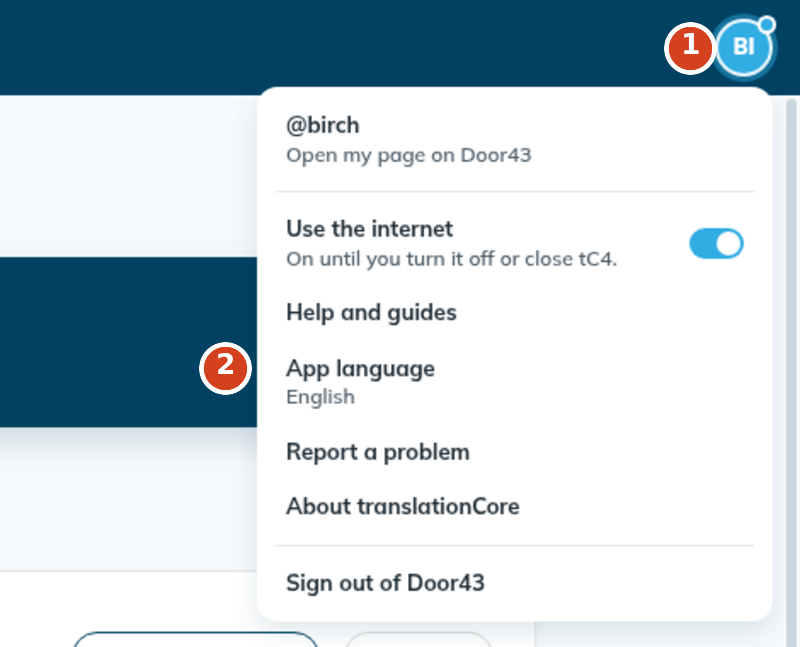
- Click the round person icon at the top right (1), then App language (2). The menu is the same on Home and inside a project.
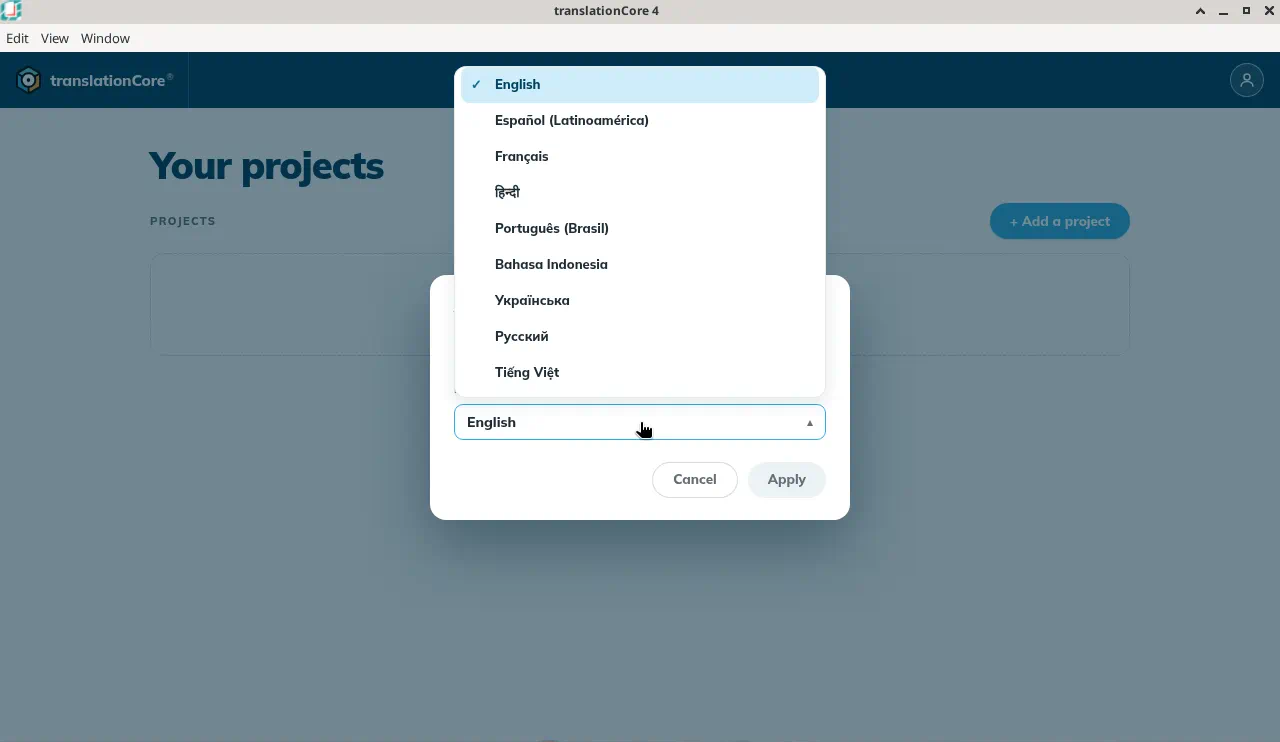
- Click the Language box and choose a language.
- The whole app switches to that language right away, so you can see what it looks like before you decide.
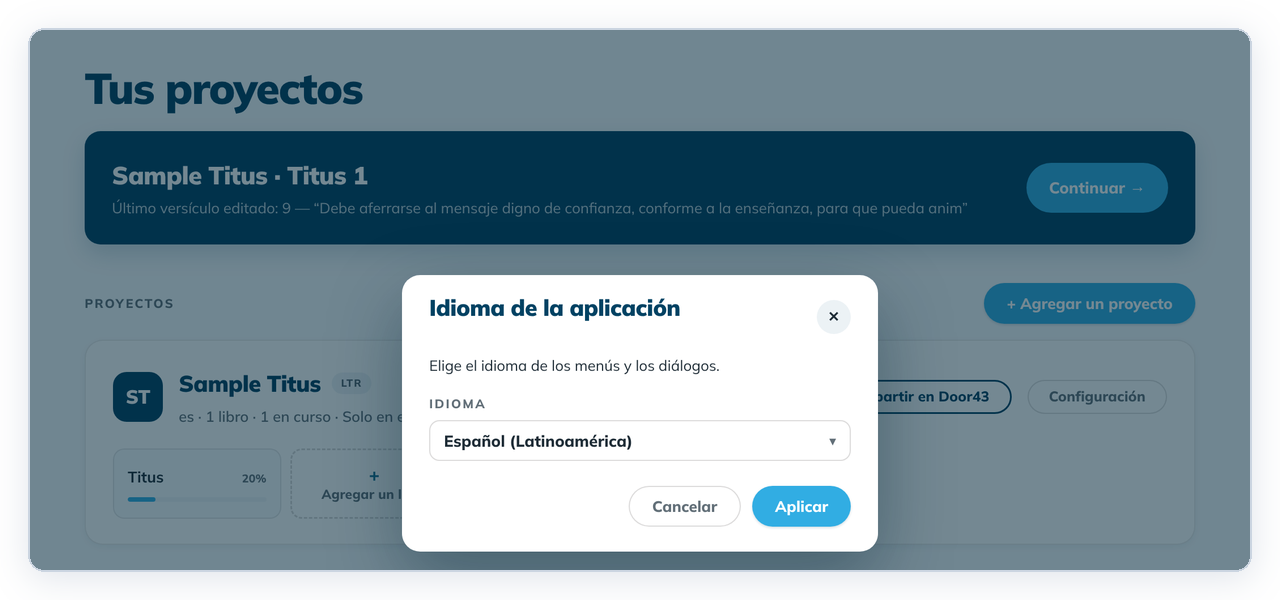
- Click Apply to keep it. In Spanish the button reads Aplicar.
To go back to the language you had, click Cancel or ✕ instead. translationCore remembers your choice the next time you open it.
What changes and what doesn't
- Changes: menus, buttons, labels and dialogs, such as Understand, Translate and Check at the top of a project.
- Doesn't change: your translation, the source texts (such as the ULT) and the translation helps (notes, words and questions). These stay in the language they were written in. To choose the language of the checking helps, see Checking language.
Languages in the list
English, Español (Latinoamérica), Français, हिन्दी, Português (Brasil), Bahasa Indonesia, Українська, Русский and Tiếng Việt. The first four came with #522; the next five with #622.
Find English again
If you can't read the current language, the person icon is always at the top right, and App language is in the account menu (after Help and guides). English is always first in the list.