
The helps panel in Translate
While you draft, the helps panel shows the notes, word links, questions, simplified text and your own comments for the verses in focus.
It sits on the right of Translate, next to your draft.
Steps
- If the panel is hidden, click Toggle helps panel at the top right of the chapter.
- Click a tab.
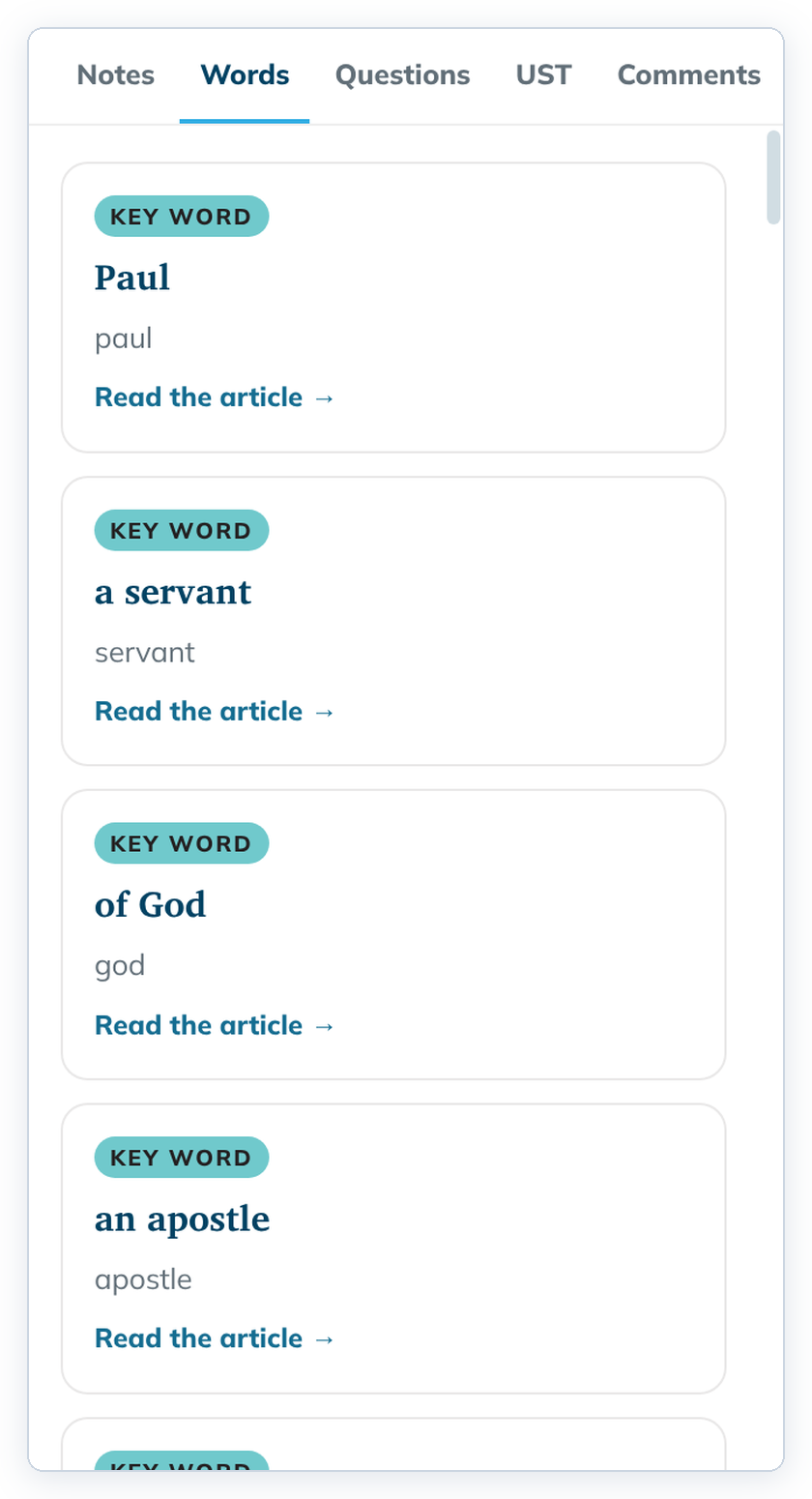
- Open a section or verse editor. The panel narrows to the verses you are editing.
The tabs
- Notes: translation notes, with links to Translation Academy articles.
- Words: key terms, each with Read the article →.
- Questions: questions with answers, to test your draft's meaning.
- UST: the simplified text of the chapter. Some gateway languages give this tab another name, such as GST.
- Comments: comments you wrote in Understand. It says "Nothing in this chapter." when there are none.
Good to know
- Point at a card to highlight its words in the source; click it to keep the highlight.
- Long notes have Show more and Show less.
- Drag the vertical divider between your draft and the helps to make the panel wider or narrower. Toggle helps panel shows or hides the panel completely (one button; there is no separate widen control).
- Each help is explained in the Understand section.